

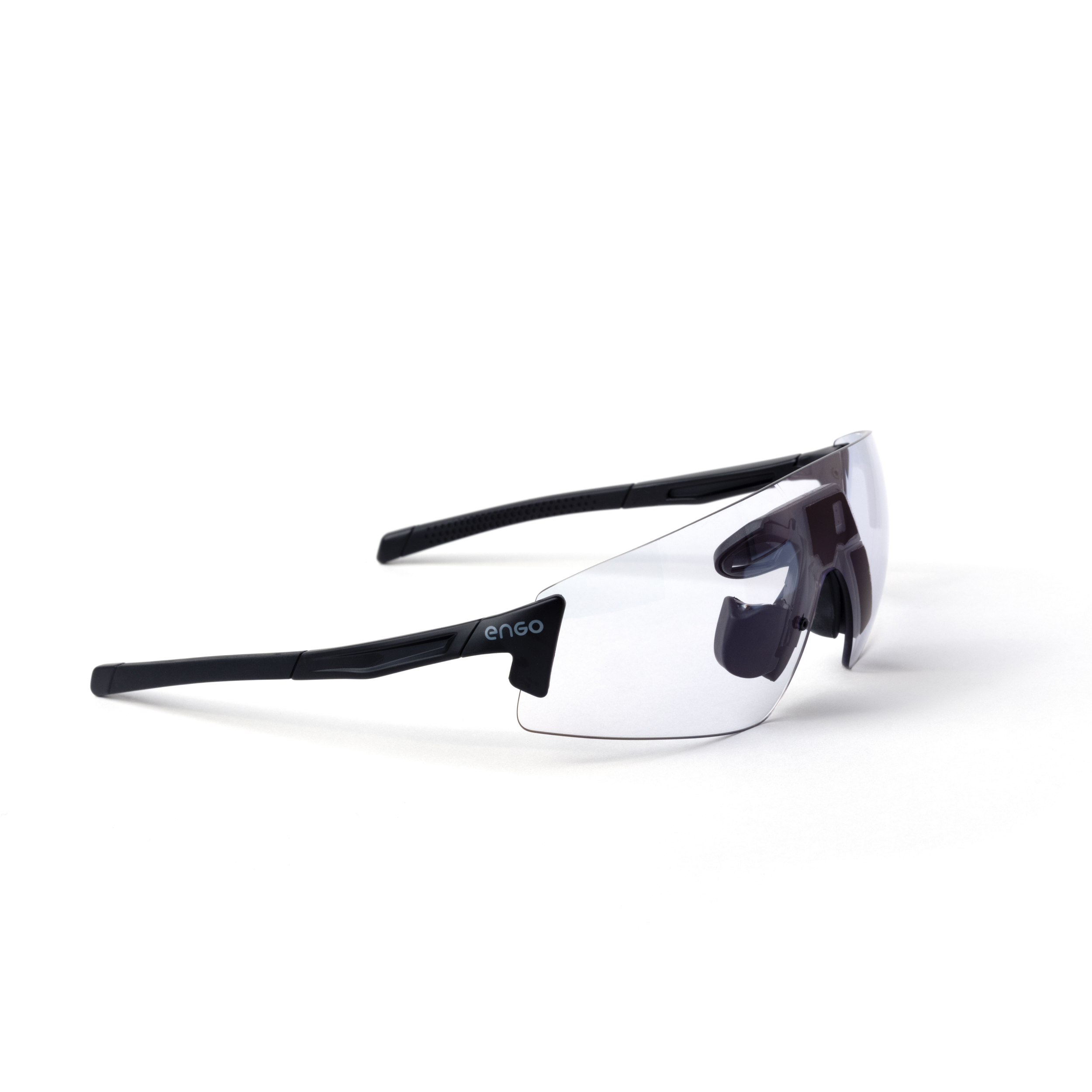
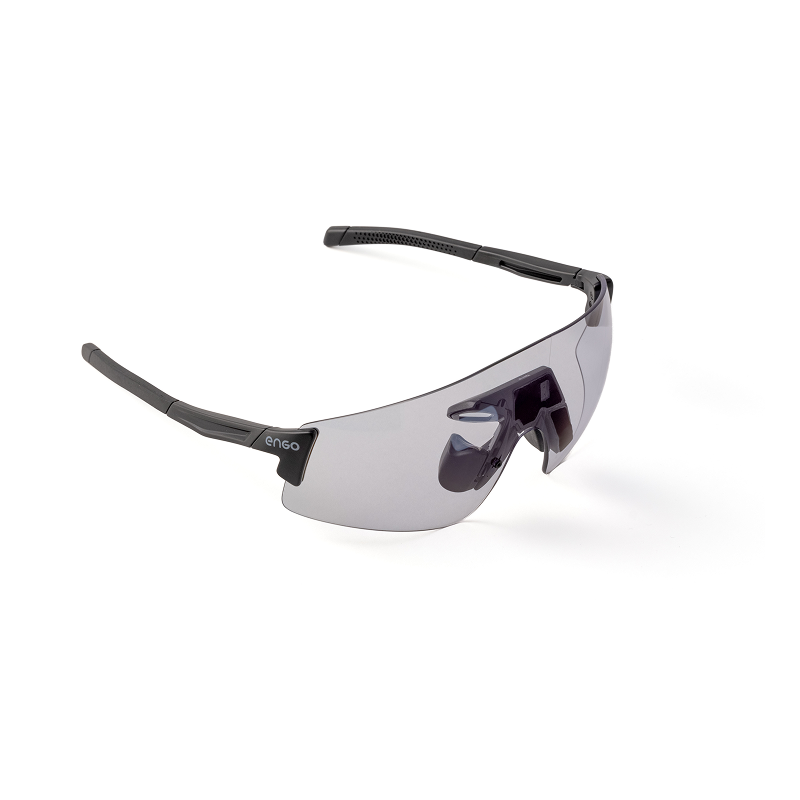
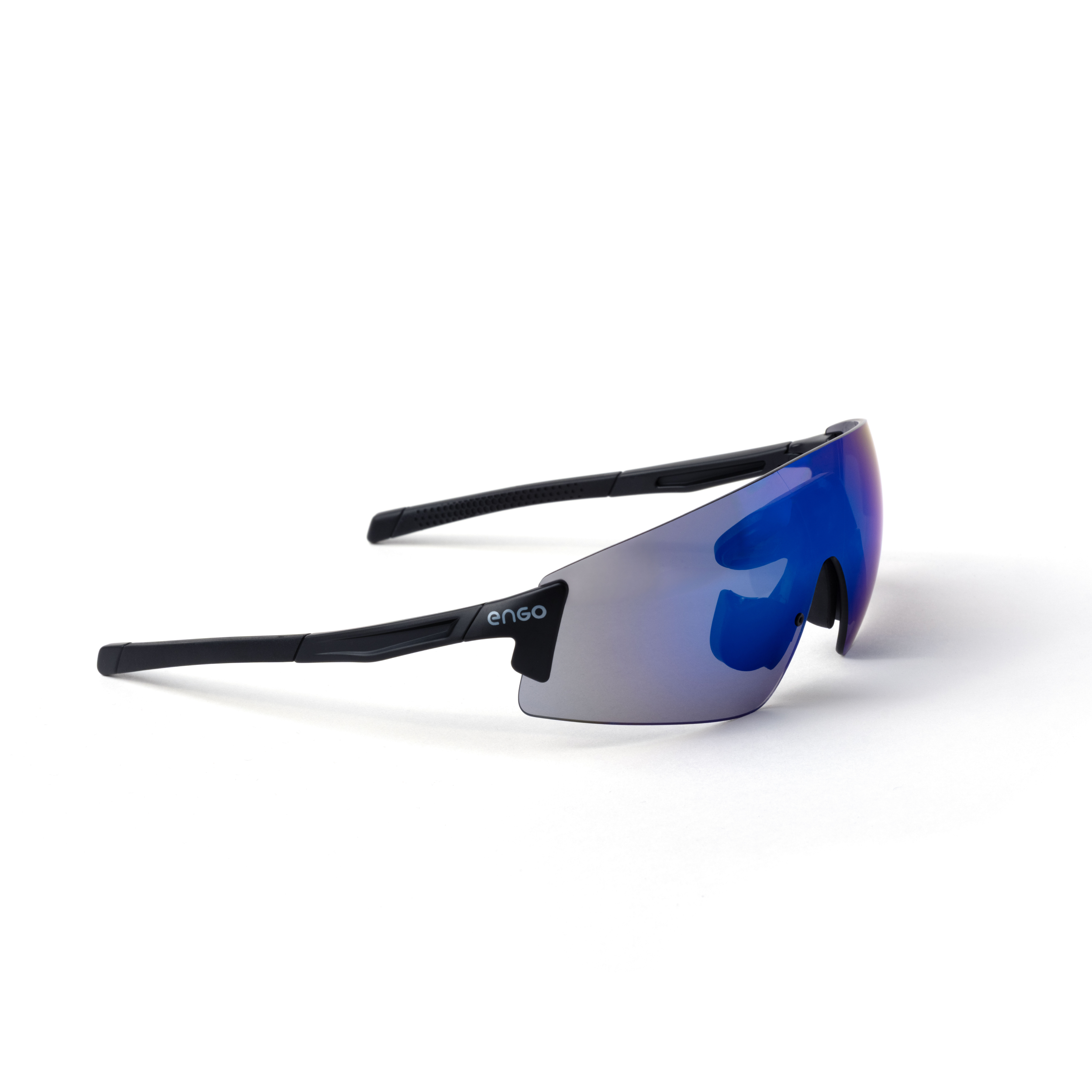

Connect your engo3 to your sportwatch in under 5 minutes
If you have engo2, follow the step-by-step dedicated here.
You can find here the list of compatible Garmin watches.
If anything blocks you, select the step-by-step guide or troubleshooting page.
Quick Start | How to connect your engo3 to your Garmin
Here are the 5 steps you'll need to follow before you start:
- engo Companion app installed on your phone
- Garmin Connect app installed on your phone.
- Garmin IQ Store installed on your phone (to get the engo datafield)
- engo3 charged and powered on (hold the button until the light turns blue)
- Garmin device paired and synced with your phone through Garmin Connect.
A datafield is a software installed on your watch (with Garmin IQ Store) to make it compatible with other devices. Here, your brand new pair of engo3.

Quick start Garmin
Step-by-step | How to connect your engo3 to your Garmin
We are here to guide you through the process of connecting your devices to your engo3.

Step by step Garmin
Step 1 — Pair your engo3 glasses
Turn on your engo3: press the button until the light turn blue. Open the engo Companion app on your phone and tap "Pair new glasses" to add your engo3.

Step by step Garmin
Step 2 — Install the engo datafield
If prompted, tap "Install the datafield" and follow the in-app instructions to make your Garmin fully compatible with engo3.

Step by step Garmin
Step 3 — Pair your Garmin
Tap "Pair new device" and select your Garmin from the list.

Step by step Garmin
Step 4 — You're good to go
Tap "Ready." The Bluetooth connection between your phone and the engo glasses will stop to let the Garmin connect to the glasses.
Your Garmin is now connected to your engo3 glasses. Start a run on your watch to see the data appear in your glasses.
Step-by-step | How to create your personnalized datascreens
We are here to guide you through the process of personalizing your data screens. engo3 offers over 40 metrics to choose from to create your perfect running or cycling dashboard.

Personnalized datascreens
Step 1 — Open the datascreen editor
In the engo Companion app, tap "Screen Set" to start building your screens.

Personnalized datascreens
Step 2 — Choose a starting point
Not sure which data suits you best? Start with the default screens to get a feel for the glasses. You can always customize later.

Personnalized datascreens
Step 3 — Create or edit a screen
Tap the default screen to edit it, or tap "Add Screen" to create a new one. Name your screen and select your sport: any sport, running, or cycling.

Personnalized datascreens
Step 4 — Pick your layout
Choose how many widgets you want on your screen — up to 6 per screen.

Personnalized datascreens
Step 5 — Add your metrics
Tap the plus sign to add a widget to each space. Choose from core metrics, heart rate, power, and more. Your changes appear on your engo3 in real time.

Personnalized datascreens
Step 6 — Save your screen
Tap "Save Screen" to lock in your setup for your next session.
Follow a workout on your engo3
Discover the new engo3 Workout Mode. A workout is a structured training session made up of individual steps, each with its own target pace, power, or heart rate zone.
When you start a workout session, your engo3 displays in front of you everything you need to nail it: a clear view of your current step, what's coming next, and how far you've progressed through your session. Live gauges keep you precisely on target, instantly showing whether you need to speed up or slow down to hit each step's goal.
From warm-up to fartlek intervals and cool-down, engo3 guides you through every step of your training.


Ease in, ease out. Your engo3 displays your target pace or heart rate zone right in front of you — guiding you through a smooth start and a gradual finish.
Whether you're preparing your body for the effort ahead or bringing it back down after a hard session, the live gauge keeps you at exactly the right intensity. Every great workout starts and ends the right way.
This is where the work happens. Your engo3 live gauges tell you in real time whether you're hitting your target — push harder or ease off, step by step. Stay in the zone and make every interval count.
Catch your breath, but stay on track. Your engo3 monitors your recovery pace and heart rate so you arrive at the next interval ready to give it your all. The gauge keeps you from going too hard — or too easy.
Quick Start | How to connect your engo3 to your Apple Watch
Install the ActiveLook app
For now, the engo3 is compatible with Apple Watch through the ActiveLook application.
To get started, make sure the ActiveLook app is up to date on your iPhone — the Apple Watch application will install automatically alongside the iOS app.
Connect your glasses
Once installed, open the app on your Apple Watch, turn on your engo3, and tap the eyewear icon on the main screen to scan for your glasses.
When connected, you will see a yellow check mark on the watch and a "Ready?" message in your engo3.
Manage your glasses
From the Apple Watch app, you can manage your engo3 directly: adjust brightness, enable or disable the gesture sensor, and turn your eyewear off. To start an activity, simply tap "Run" or "Cycling" from the watch screen.
What's next?
Please note that some features available on Garmin are not yet supported on Apple Watch. A dedicated engo3 app for Apple Watch is under development and the release is in June.
What is not available in engo3 x ActiveLook
This includes the dedicated workout mode, the color display, and the drag-and-drop screen customization available in the app.
Need help?
- Your watch model
- Your phone (iOs or Android)
- Screenshots of what's not working
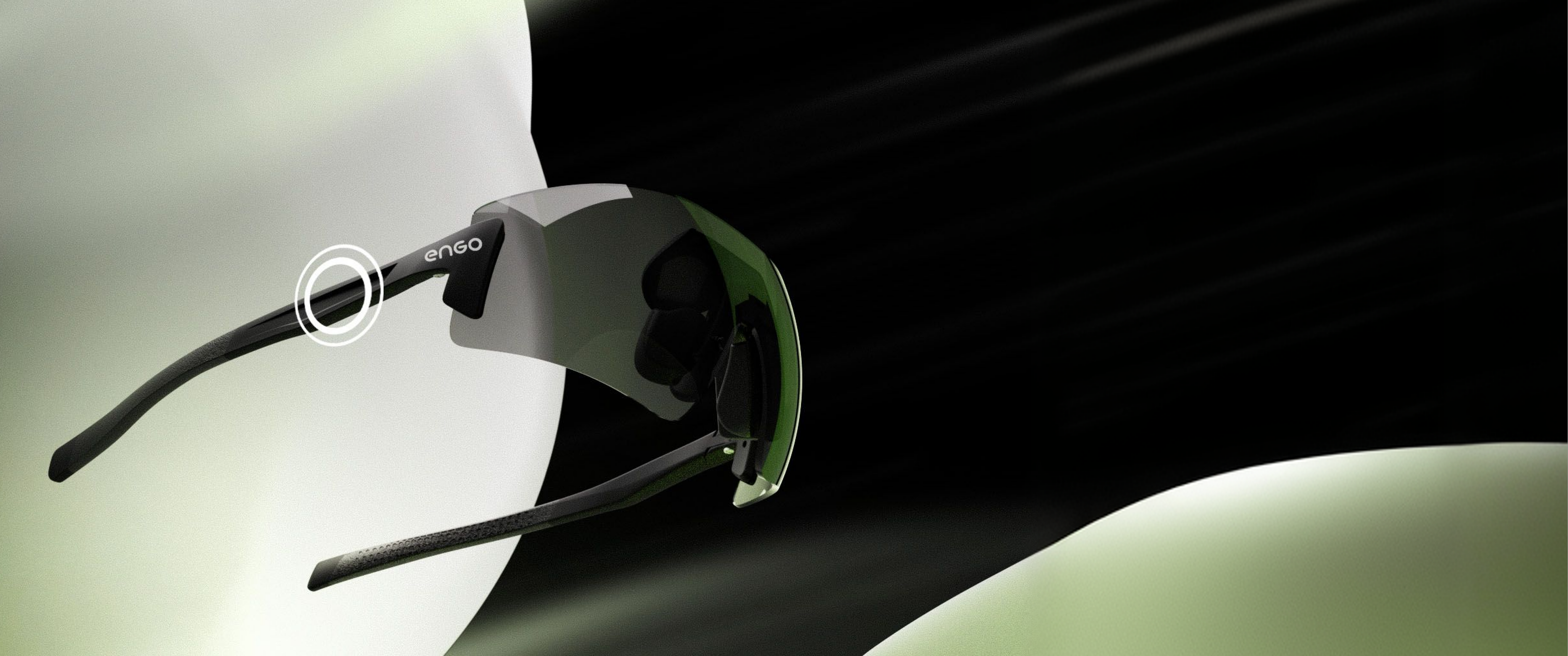

Compatible Devices
Works with most Garmin, Apple Watch, or Suuntos. See the complete list of supported devices and third-party apps that work seamlessly with ENGO.
Check the compatibility of your device
ENGO Care
Your Worry-Free Protection. Scratched lenses? Broken frame? Stolen gear? For one year, we'll replace your ENGO—no hassle, no extra cost. Train hard without worry.
Learn About ENGO Care
Get Started in Minutes
Step-by-step instructions for pairing ENGO with your specific watch model. Clear, simple guidance to get you from unboxing to your first run in under 5 minutes.
Connect ENGO to your device
Returns
Train with ENGO for a full month. If it doesn't transform your running, return it free with our prepaid label. Full refund, no questions asked, no restocking fees.
See Return Process
Questions? We're Here.
Browse our FAQ library, explore detailed setup guides, search our help database, or chat directly with our support team. Real help when you need it.
Visit Support Center